
Use Courant from AI apps
On the Mac, let Claude, ChatGPT, Cursor and other AI apps search and read your mail through Courant (MCP), and propose drafts you approve one by one.
On this page
AI apps on your Mac that speak MCP (the Model Context Protocol), such as Claude, ChatGPT, Cursor or Claude Code, can use Courant as a tool: search your mail, read conversations, show one in Courant, and prepare drafts. They go through Courant, with the accounts you already added, and can never send, delete or move anything.
Turn it on
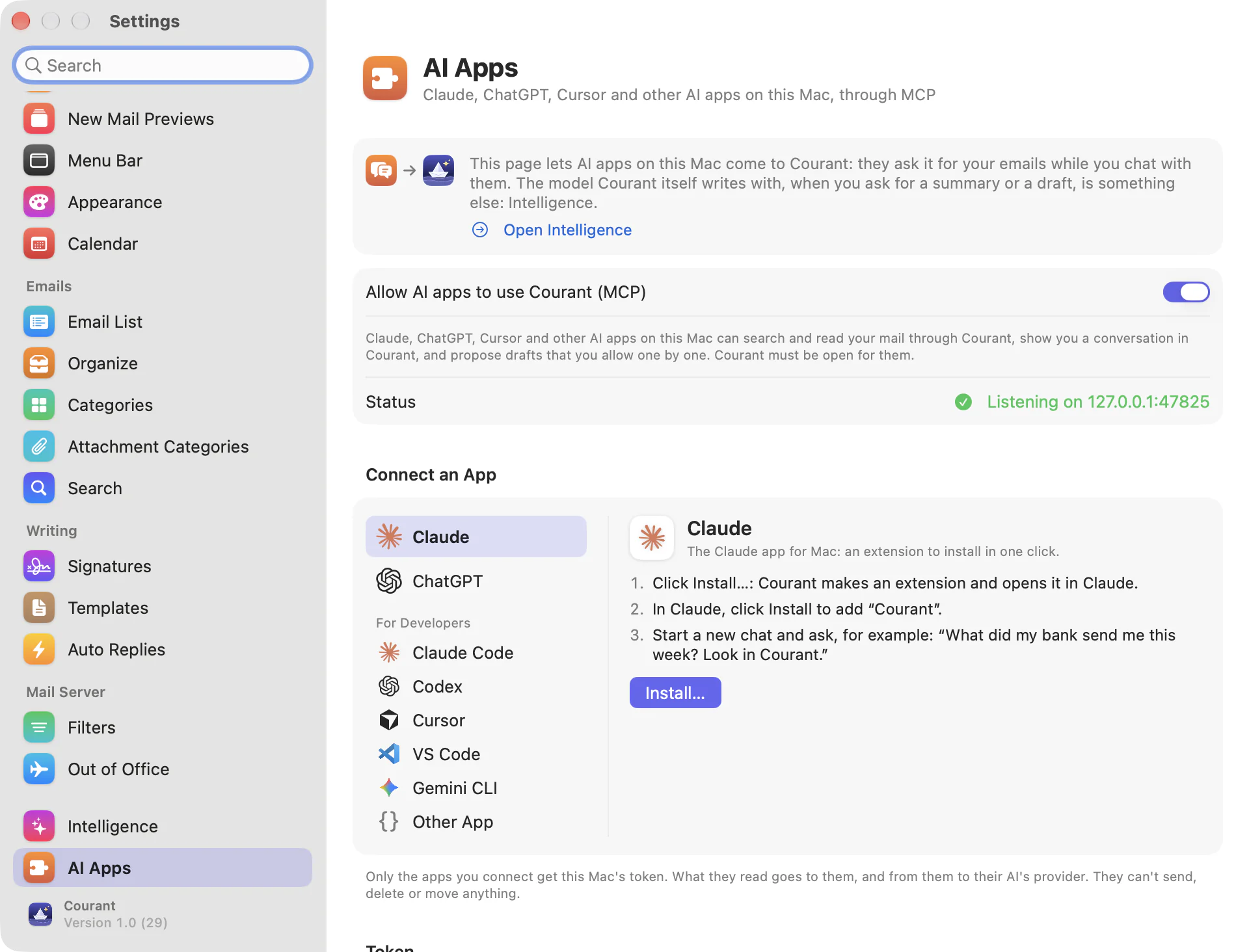
- On the Mac, open Settings › AI Apps (at the end of the sidebar, with Intelligence).
- Turn on Allow AI apps to use Courant (MCP) (off until you turn it on).
- Status says Listening on 127.0.0.1:47825. When another app already uses that port, Courant takes a following one and says so.
Courant must be open for the apps to reach it. Once an app has used it, a line under the status names the apps of the last hour.
Connect an app
Under Connect an App, choose the app in the list: Claude and ChatGPT, then, under For Developers, Claude Code, Codex, Cursor, VS Code, Gemini CLI and Other App. Beside the list, Courant shows that app's steps, what it will be given (the token hidden until you click Show beside Token), and one button that does it.
Claude
The Claude app for Mac connects through an extension, in one click:
- Click Install…: Courant makes an extension and opens it in Claude.
- In Claude, click Install to add « Courant ».
- Start a new chat and ask, for example: « What did my bank send me this week? Look in Courant. »
There is nothing else to install and no configuration file to edit: Claude runs its extensions itself. When Claude isn't on your Mac, Courant shows the extension in the Finder and offers Get Claude: once Claude is installed, open that file, or click Install… again. If Claude doesn't open it, double-click it in the Finder, or in Claude's settings, under Extensions, choose Install Extension… and the file.
ChatGPT and Codex
The ChatGPT app for Mac keeps its MCP servers in the configuration it shares with Codex, ~/.codex/config.toml.
Click Copy Command, paste it in Terminal and press Return. The line adds this to the file (the token is yours):
[mcp_servers.courant]
url = "http://127.0.0.1:47825/mcp"
http_headers = { Authorization = "Bearer <token>" }
Quit ChatGPT (or Codex) and open it again.
Ask, for example: « Summarize my unread emails in Courant. » ChatGPT asks before it uses Courant's tools.
Run again, after a new token for example, the line replaces Courant's entry and leaves your other servers and settings as they are.
Claude Code and Gemini CLI
Click Copy Command, paste it in Terminal and press Return, then start the tool again: /mcp lists Courant. The line adds Courant for all your projects (--scope user):
claude mcp add --transport http --scope user courant http://127.0.0.1:47825/mcp --header "Authorization: Bearer <token>"
gemini mcp add --scope user --transport http courant http://127.0.0.1:47825/mcp --header "Authorization: Bearer <token>"
Get Claude Code, Get Codex and Get Gemini CLI, beside the button, lead to their installation pages.
Cursor and VS Code
Click Add to Cursor or Add to VS Code: the app opens and asks to add Courant; click Install there. If it doesn't open (it isn't on this Mac), Courant copies the configuration instead, to paste into its MCP settings, and offers to get the app.
Another app
Other App gives the configuration most MCP apps read (mcpServers): click Copy Configuration and paste it into the app's MCP settings. It names the address http://127.0.0.1:<port>/mcp and the header Authorization: Bearer <token>. An app that only starts local commands can reach Courant through mcp-remote, which needs Node.js.
What an AI app can do
- list your accounts and their labels or folders, and the unread counts;
- search your mail and list a mailbox;
- read a conversation;
- show a conversation in Courant;
- create a draft, which you approve.
For each draft, a Draft Request window opens: « … wants to create a draft to … », with its subject and text, and Deny or Allow. Allowed, the draft is saved in the account's Drafts, with your signature, as Courant would write it: nothing is sent, and you can review, change or delete it before sending. A request unanswered after two minutes saves nothing.
Stay in control
- Only apps on this Mac that have the token can connect: Courant listens on 127.0.0.1 alone. Each Mac has its own token, never synced. Show, Copy and Regenerate… are beside it; after a new token, the apps set up with the old one lose access until you connect them again (for Claude, click Install… again).
- Recent Activity lists what the apps did: each connection, each tool used, and the requests refused (a missing or wrong token, a request from a web page). Stop All Access turns the server off at once, ends every session and declines the drafts waiting; Clear empties the list.
- What the apps read goes to them, and from them to their AI's provider: what they do with it follows their own terms.